How to export 432 Hz music as FLAC, ALAC, or MP3 to the Files app
Once a track is retuned, FourThirtyTwo can save it as MP3, M4A AAC, lossless ALAC, FLAC or WAV, straight to the Files app or through the share sheet. Here’s which format to pick and exactly how to do it.
Quick steps
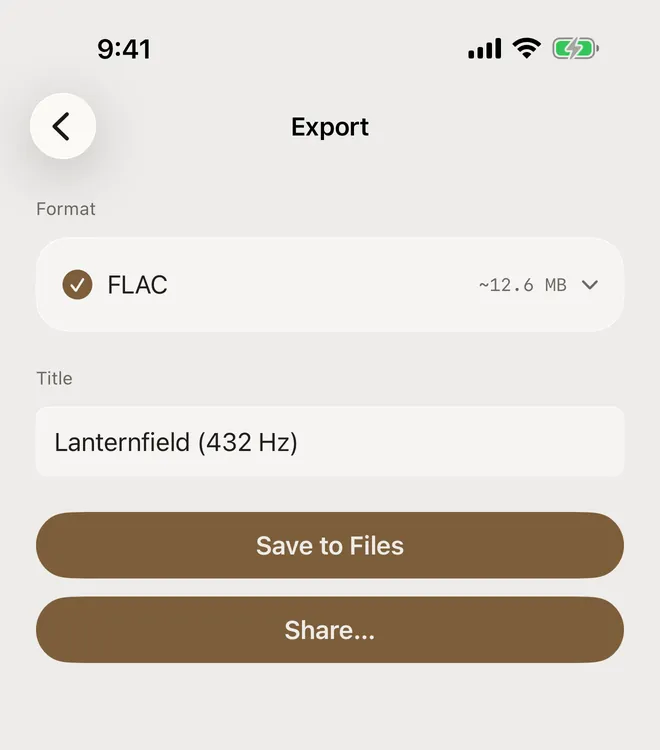
- After Conversion Complete, tap Export.
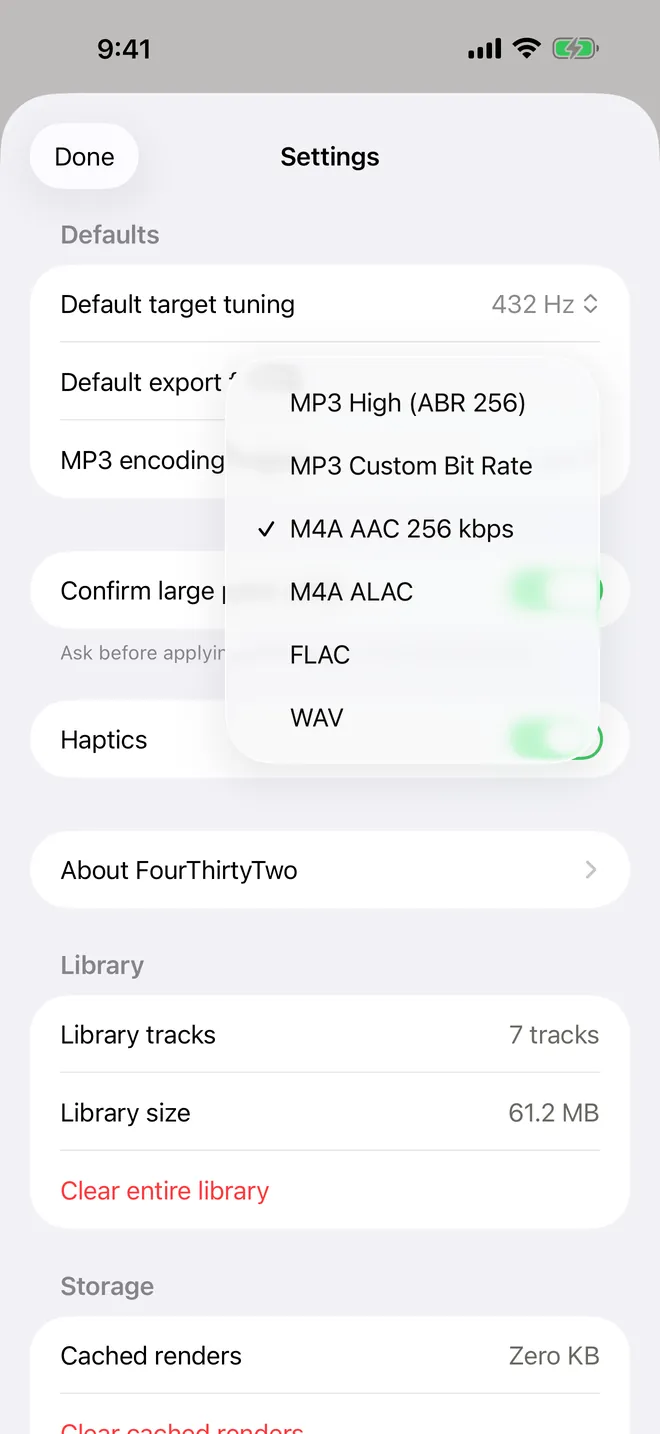
- Tap the Format row and choose MP3, M4A AAC, M4A ALAC, FLAC or WAV.
- Check the Title, then tap Save to Files (or Share…).
- Pick a folder and tap Save.
Which format should you choose?
| Option in the app | Quality | Good for |
|---|---|---|
MP3 High (ABR 256).mp3 | Lossy, about 256 kbps average | Maximum compatibility: cars, older players, any app |
MP3 n kbps (MP3 Custom Bit Rate in Settings).mp3 | Lossy, constant 32–320 kbps | A specific bitrate, or smaller files |
M4A AAC 256 kbps.m4a | Lossy, 256 kbps AAC | Everyday listening on Apple devices (the default) |
M4A ALAC.m4a | Lossless (Apple Lossless) | Lossless files that play natively in Apple apps |
FLAC.flac | Lossless | Lossless libraries and players outside Apple’s ecosystem |
WAV.wav | Uncompressed PCM | Editing in a DAW or audio editor, with the largest files |
- Metadata: MP3, M4A and FLAC exports keep the title plus supported artist, album, comment and artwork metadata, in single and batch conversions alike. WAV exports contain the converted audio without metadata.
- Lossless can’t add quality. Exporting an MP3 source as FLAC won’t make it sound better than the MP3. It only avoids a second round of lossy compression. Lossless output makes most sense when the source is lossless too.
- What we measured: the FLAC files FourThirtyTwo saved in these guides were 44.1 kHz, 24-bit stereo, exactly the same length as their sources.
Step by step
-
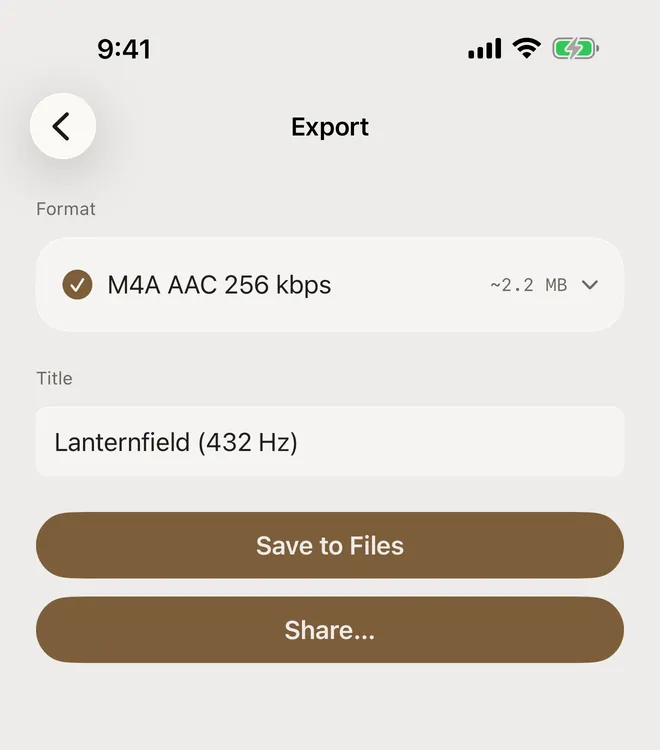
Open the export screen
After converting a track (how to convert), tap Export on the Conversion Complete screen. The export screen shows the current Format, which starts as your default, and the Title that will be used for the file name.
-
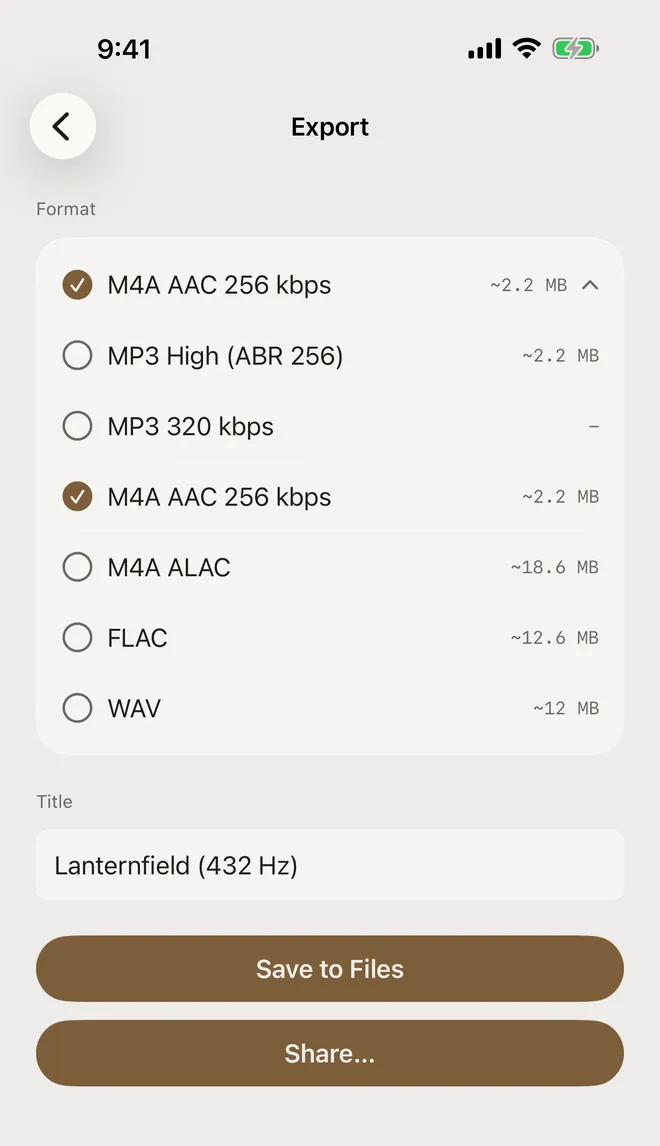
Choose a format
Tap the format row to see every option, most with an estimated file size, then tap the one you want. The MP3 row with your own bitrate shows its size once you select it. The app encodes the file in that format when you save it.
-
Check the title and save
Edit the Title if you like. It defaults to the original name plus the target, such as
Lanternfield (432 Hz). Tap Save to Files. A progress bar appears while the file is prepared.Or tap Share… to send it with AirDrop, Messages, Mail or another app.
-
Pick a folder
The iOS save sheet opens. Choose where the file goes, such as On My iPhone or iCloud Drive (we used a Retuned folder), and tap Save. The file appears there as
Lanternfield (432 Hz).flac, and your original is unchanged.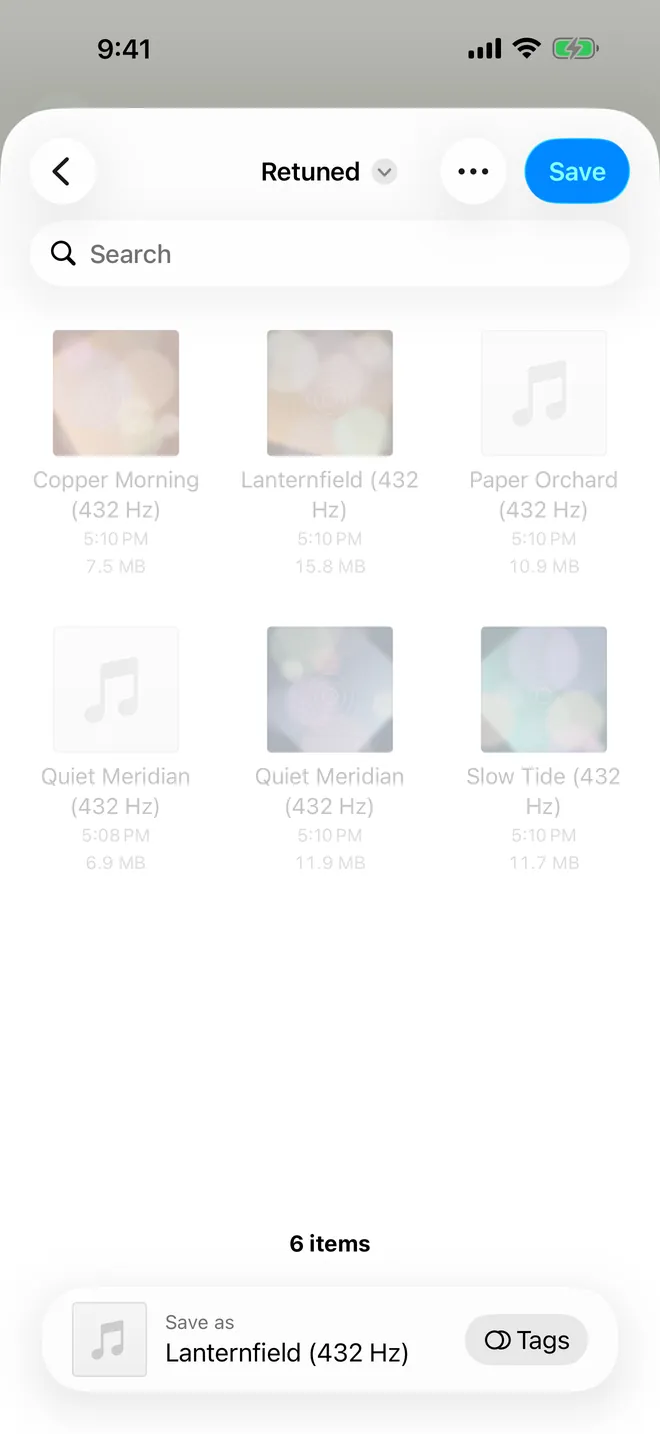
Exporting later from the Library
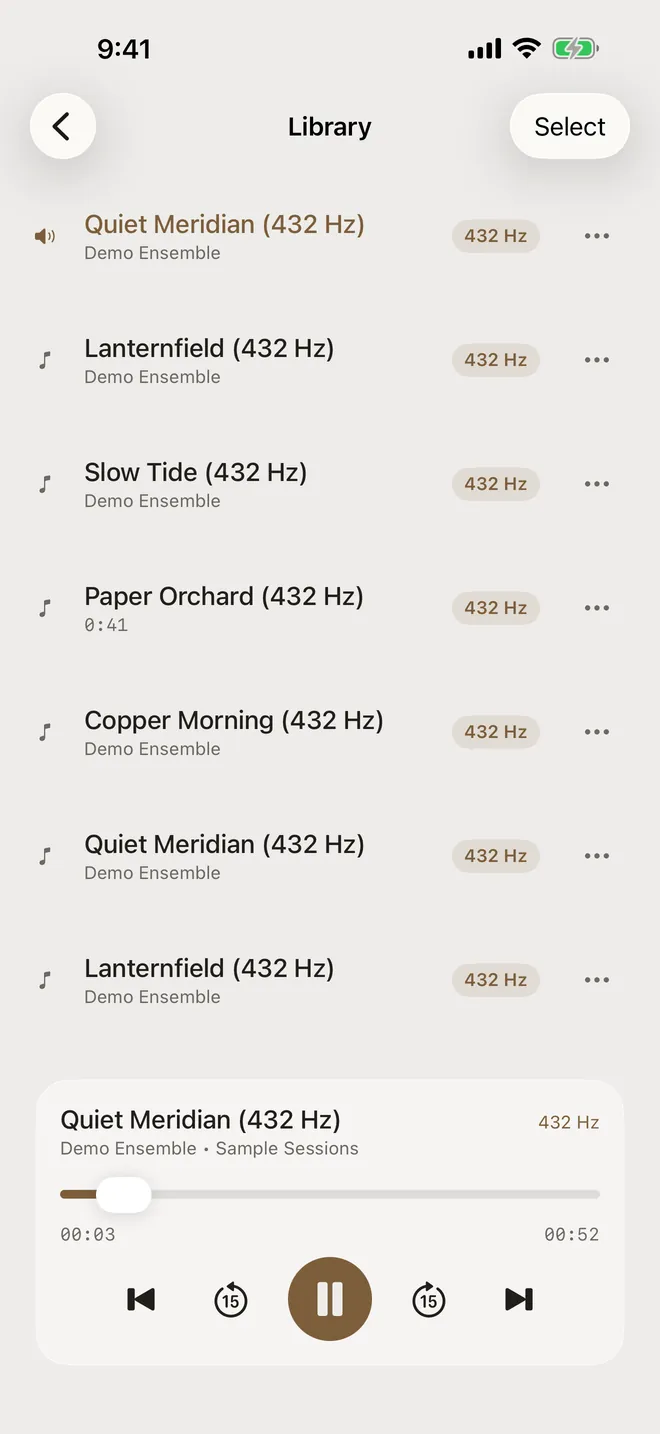
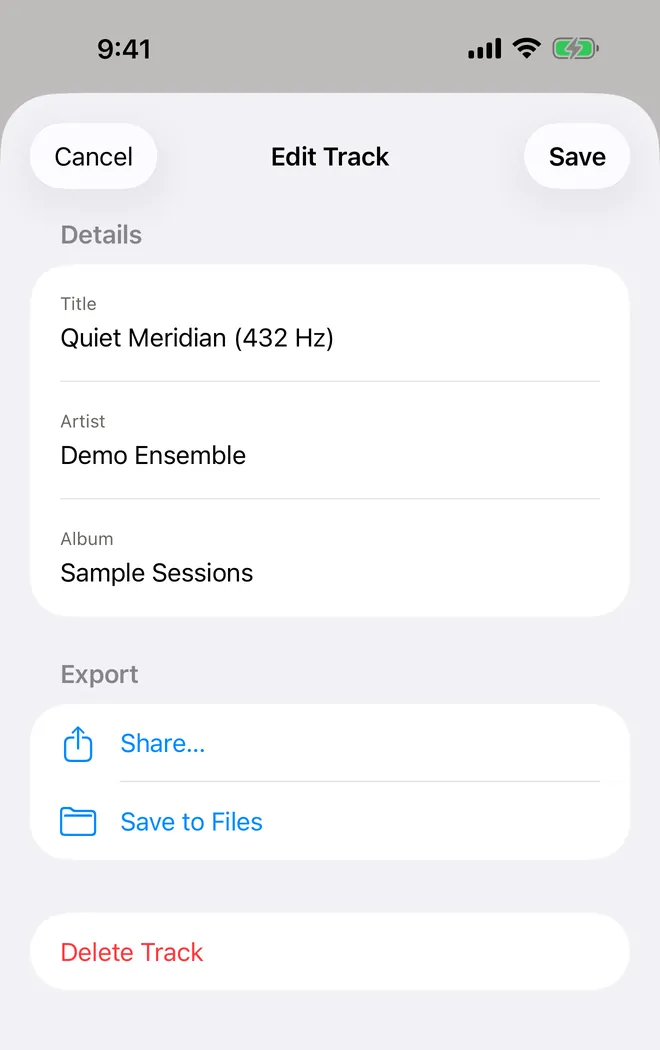
If you tapped Add to Library, you can export again at any time. Open Library from the home screen, tap ••• next to a track and choose Share… or Save to Files. The same sheet lets you edit the title, artist and album. To export several tracks at once, tap Select in the library.
Change the default format
New conversions use the format set in Settings › Defaults › Default export format. Open it from the gear icon on the home screen. If you always want FLAC or ALAC, set it there and Create 432 Hz File will produce that format directly.
About the audio in these screenshots. The tracks (“Lanternfield”, “Quiet Meridian” and friends by “Demo Ensemble”) are short original pieces synthesized for these guides and saved as ordinary MP3, M4A, WAV and FLAC files. They’re part of our tuning test set, which you can download. Everything else is real: the app imported them through the normal Files picker, analyzed and converted them on the device, and the charts are measured from the exact files it exported.
Try it on your own music
FourThirtyTwo is a one-time purchase for iPhone and iPad. No subscription, no account, and your audio never leaves your device.


Requires iOS or iPadOS 18 or later.
More guides
- Convert music to 432 Hz on iPhone and iPadThe complete walkthrough: import a song, preview it, create the 432 Hz file, and keep or export it.
- Change a song from 440 Hz to 432 HzCheck a recording’s real tuning with Auto-detect, then set the exact source and target pitch.
- Batch convert an album or folder to 432 HzQueue many files or a ZIP, auto-detect each track’s tuning, and convert them in one pass.
- Compare 432 Hz vs 440 Hz before convertingFlip between the original and a 432 Hz preview while the song plays, and decide with your ears.
- Baroque pitch and 415 Hz recordingsWhy Auto-detect can’t tell 415 Hz from 440 Hz, and how to pick the right reading before converting.