How to batch convert an album or folder to 432 Hz
Retune an entire album, folder or ZIP of songs to 432 Hz in one pass. Each track is analyzed separately and gets its own correct shift, and you choose one output format for the whole batch.
Quick steps
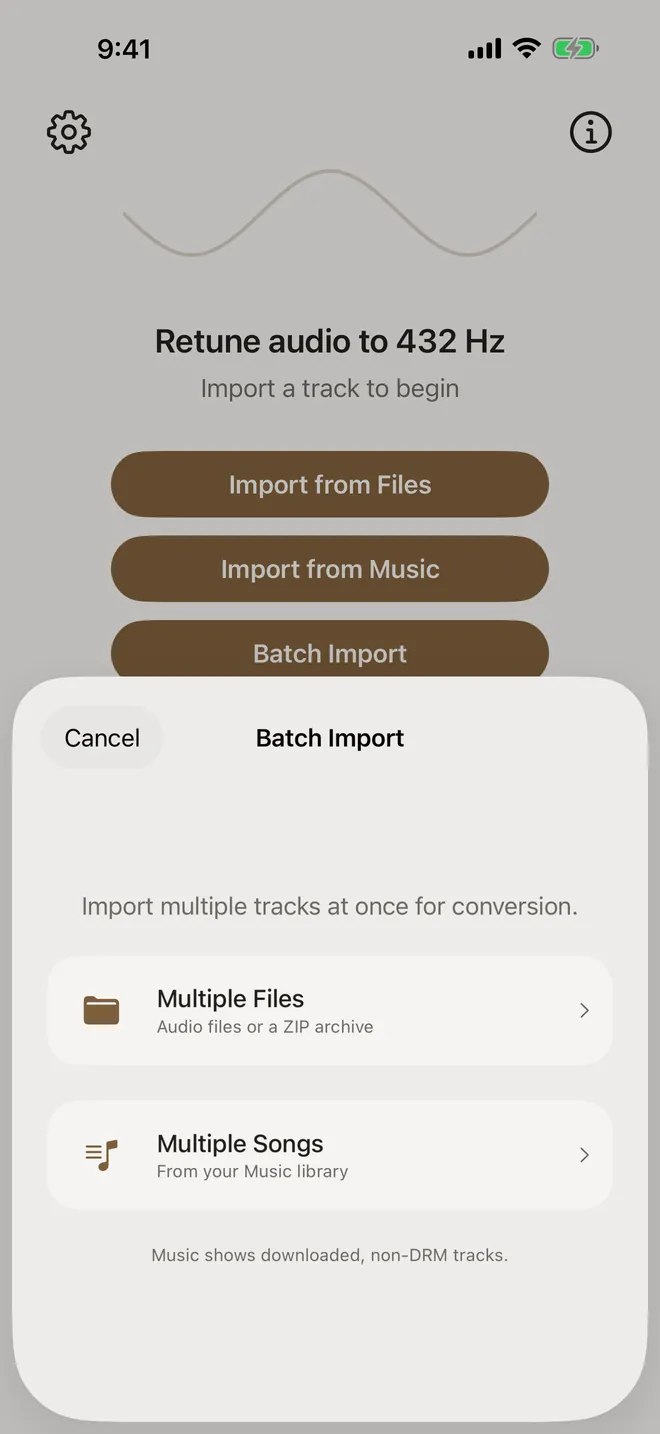
- On the home screen, tap Batch Import, then Multiple Files or Multiple Songs.
- Select your tracks (or a ZIP) and tap Open. From Music, tick the songs and tap Add.
- Tap Auto-detect all, and choose the target tuning and output format.
- Tap Batch Convert.
- Add All to Library, Save Files, Save ZIP or Share ZIP.
Step by step
-
Start a batch import
On the home screen, tap Batch Import. Choose Multiple Files for audio files or a ZIP archive from the Files app, or Multiple Songs for downloaded, non-DRM songs from your Music library.
-
Select the tracks
Open the folder with your album, tap each track to select it (or use Select All), then tap Open. The files can be in different formats. This batch mixes MP3, M4A, WAV and FLAC.
Picking from Music instead opens the app’s Choose Songs sheet. Tick each song, or Select All in an album, and tap Add. The songs keep the order you chose them in.
If your album is a
.zip, just pick the ZIP and FourThirtyTwo will unpack the audio inside.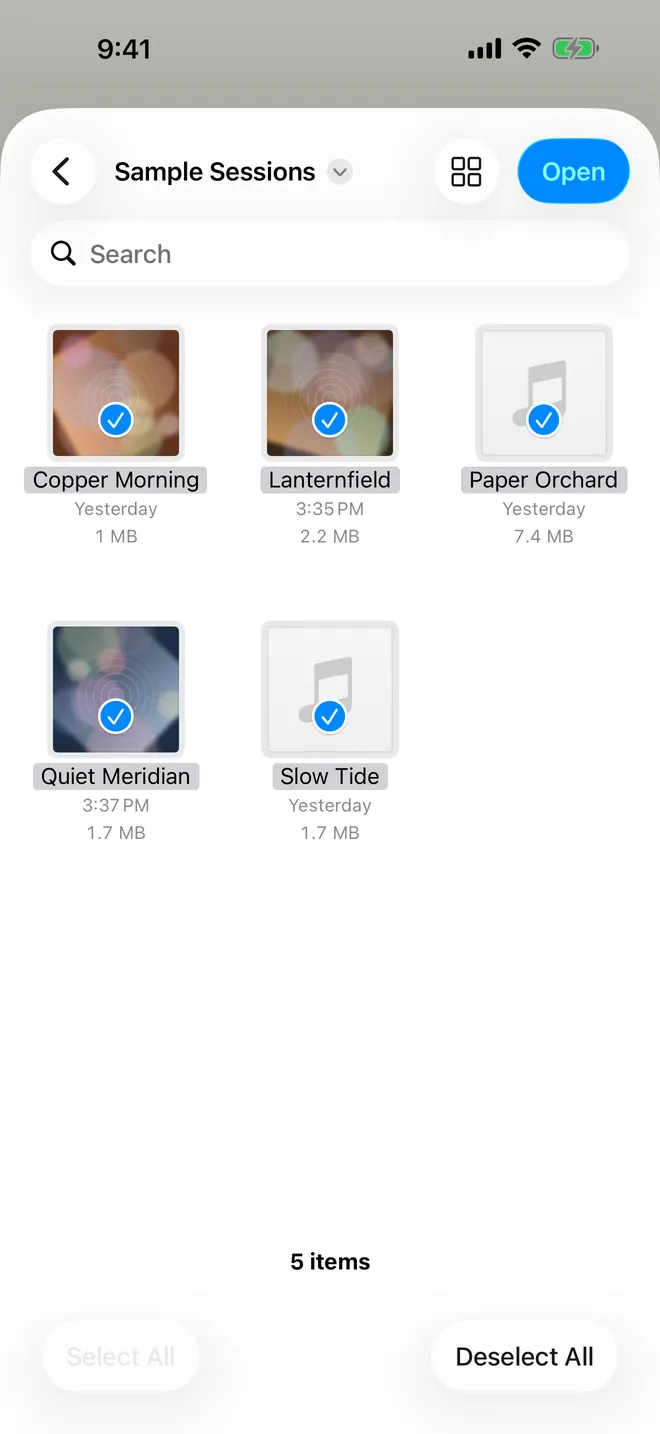
-
Review the queue
The Batch Convert screen lists every track with its output filename, such as
Lanternfield (432 Hz).m4a, plus its source and target tuning and an estimated time and size. Like single imports, each track starts as Assumed 440 Hz → 432 Hz.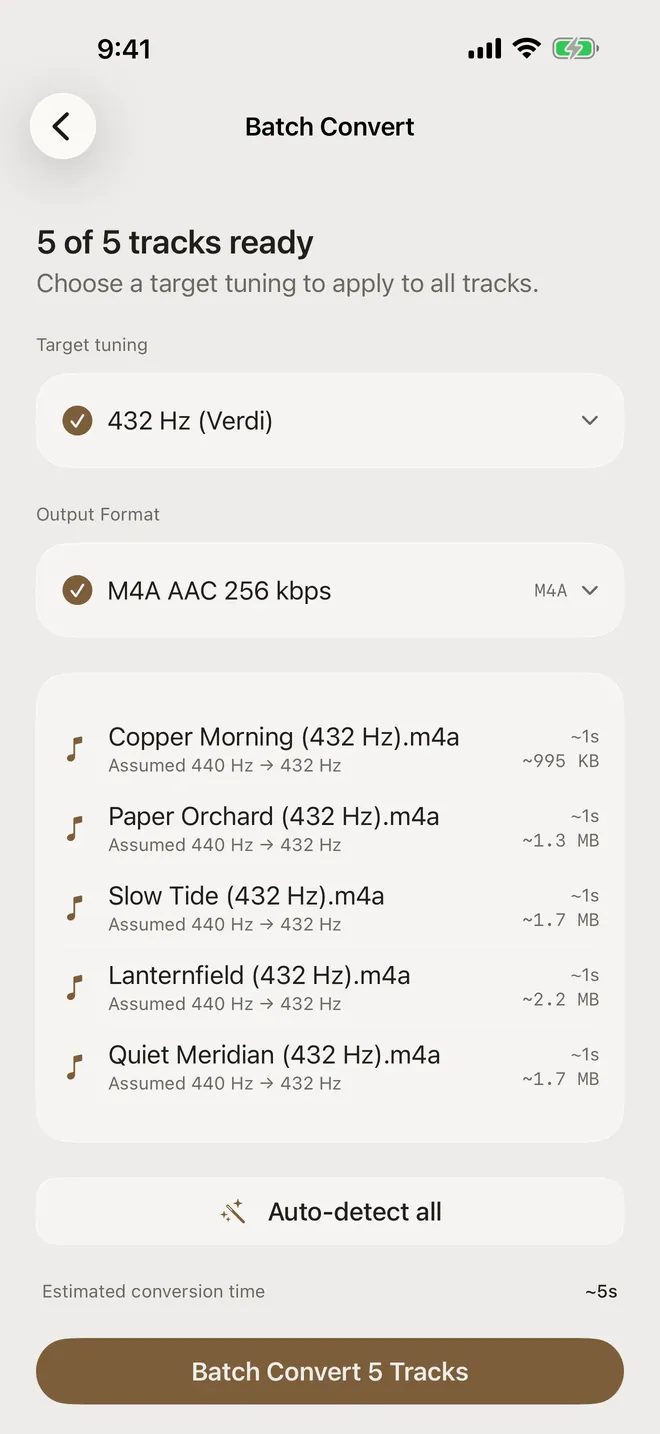
-
Detect each track’s tuning
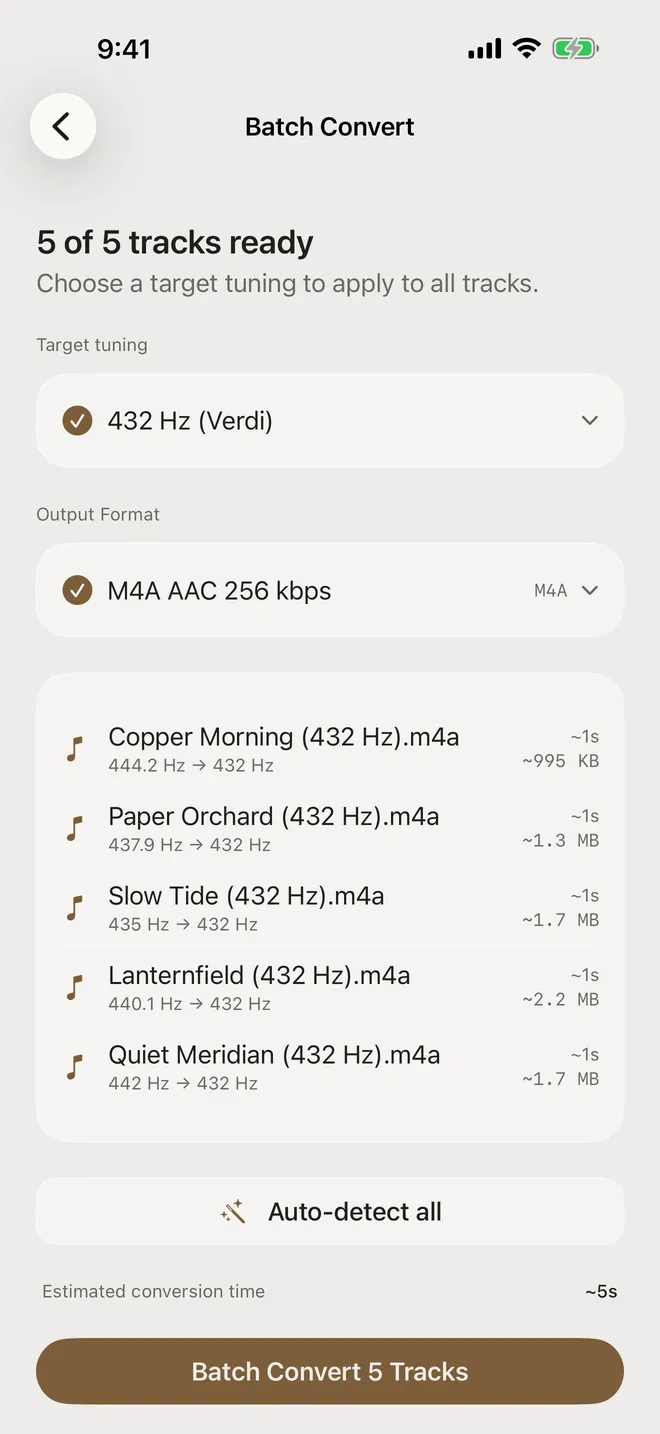
Tap Auto-detect all. Each track is analyzed separately and keeps its own source tuning. This album was recorded at five different tunings, from 435 Hz (“Slow Tide”) to 444 Hz (“Copper Morning”), and each track gets the shift it actually needs to land on 432 Hz: Slow Tide moves by only 12 cents, Copper Morning by 48.
Each estimate is shown to 0.1 Hz, without the decimal when it’s a whole number, so Paper Orchard reads “437.9 Hz” and Slow Tide “435 Hz”. Batch mode doesn’t have a per-track manual override. To type an exact source tuning for one song, convert it on its own (see how).
-
Choose the target and output format
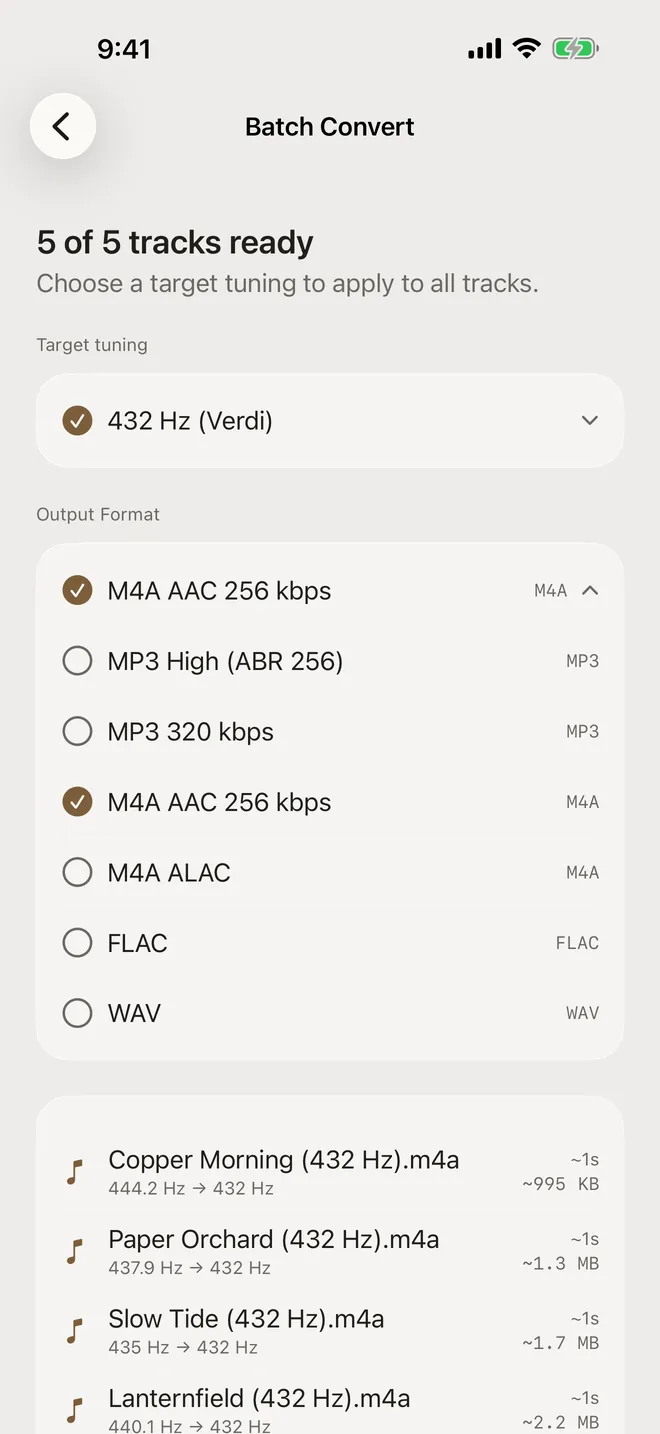
Target tuning applies to every track (432 Hz, the other presets or Custom…). Under Output Format, choose MP3 High (ABR 256), MP3 at your own bitrate, M4A AAC 256 kbps, M4A ALAC, FLAC or WAV. It starts at your Default export format from Settings. We picked lossless M4A ALAC.
-
Convert
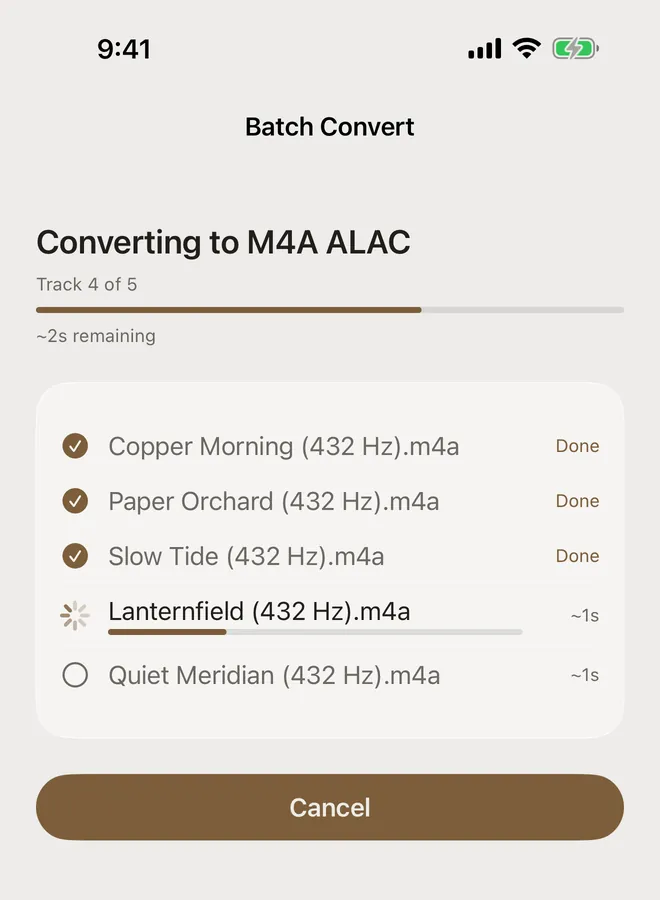
Tap Batch Convert 5 Tracks. The screen shows overall progress, which track is being processed and a time estimate. Finished tracks are marked Done, and you can Cancel at any point.
-
Save the results
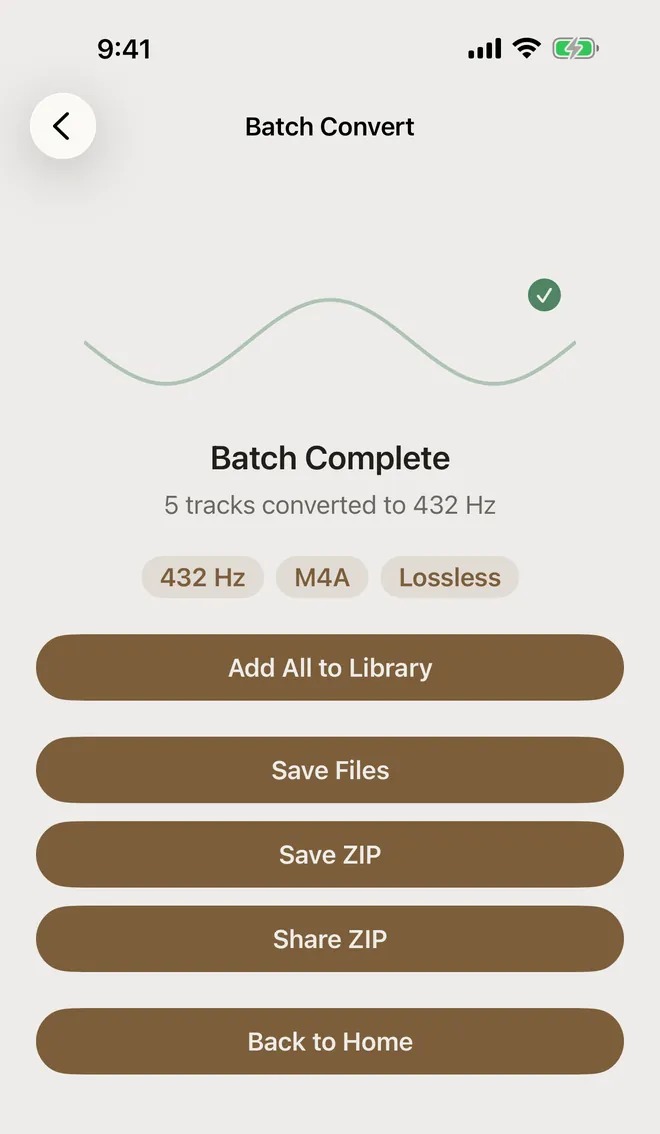
When you see Batch Complete, choose what to do with the files:
- Add All to Library keeps them in the app’s Library.
- Save Files saves each file to a folder you choose in Files.
- Save ZIP or Share ZIP packs the album into a single ZIP.
-
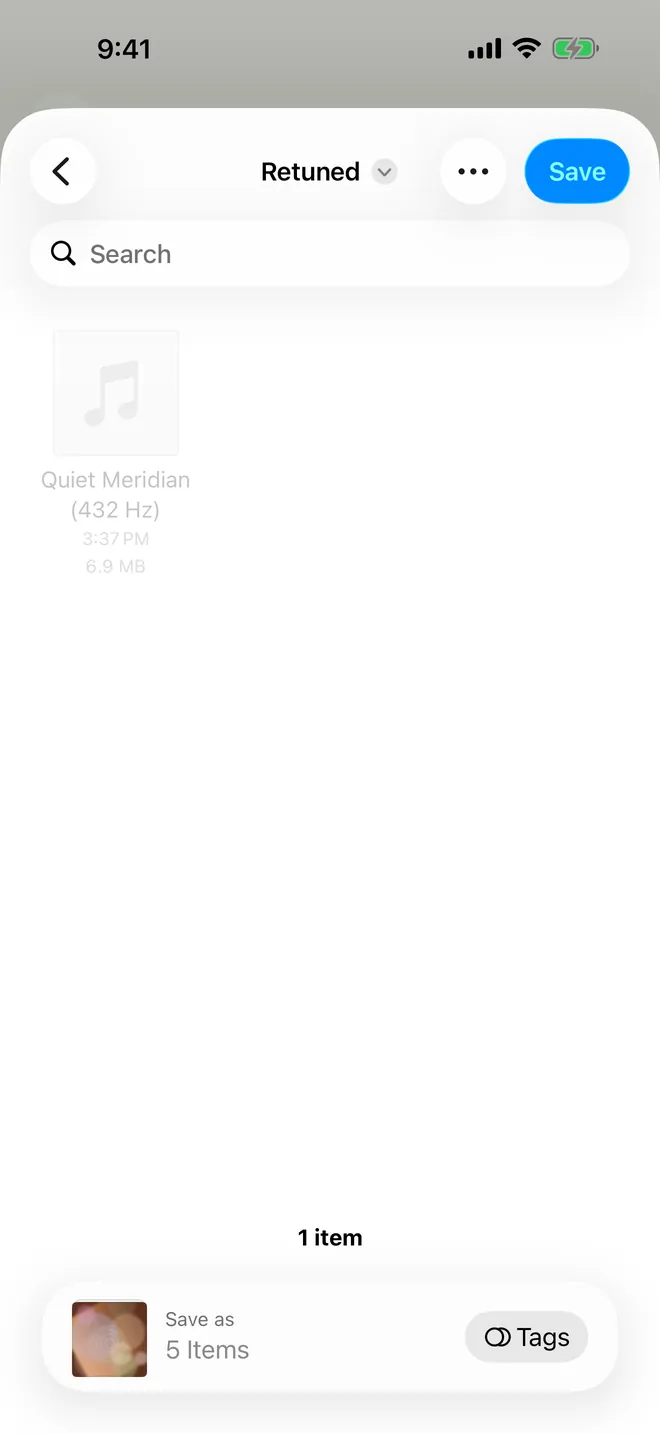
Pick a folder
With Save Files, the iOS folder picker opens. Choose a location (we made a Retuned folder in On My iPhone) and tap Save. The original files aren’t touched.
Did every track land on 432 Hz?
We measured the five ALAC files the batch produced against their sources. Each track moved by the amount its own detected tuning called for, within a fraction of a cent, and every file is exactly as long as its source.
| Source file | Detected source | Expected shift | Measured shift | Length before → after |
|---|---|---|---|---|
| Lanternfield.mp3 | 440.1 Hz | −32.2 cents | −32.3 cents | 1:08.000 → 1:08.000 |
| Copper Morning.mp3 | 444.2 Hz | −48.2 cents | −48.8 cents | 0:31.091 → 0:31.091 |
| Paper Orchard.wav | 437.9 Hz | −23.5 cents | −23.4 cents | 0:41.678 → 0:41.678 |
| Slow Tide.flac | 435.0 Hz | −12.0 cents | −11.9 cents | 0:52.000 → 0:52.000 |
| Quiet Meridian.m4a | 442.0 Hz | −39.6 cents | −39.7 cents | 0:52.000 → 0:52.000 |
About the audio in these screenshots. The tracks (“Lanternfield”, “Quiet Meridian” and friends by “Demo Ensemble”) are short original pieces synthesized for these guides and saved as ordinary MP3, M4A, WAV and FLAC files. They’re part of our tuning test set, which you can download. Everything else is real: the app imported them through the normal Files picker, analyzed and converted them on the device, and the charts are measured from the exact files it exported.
Tips
- Mixed tunings are fine. Because each track keeps its own source tuning, an album with tracks at 435, 438, 440, 442 and 444 Hz still ends up at 432 Hz throughout, as long as you run Auto-detect all.
- Tracks that can’t be measured are skipped. If Auto-detect all can’t read a track’s tuning, that track is marked “Analysis failed” and left out of the batch rather than converted at the wrong tuning.
- Filenames stay tidy. Outputs keep the original name with the target added, for example
Slow Tide (432 Hz).m4a. - Lossless in, lossless out. If your source files are lossless (WAV, FLAC, ALAC), choose M4A ALAC, FLAC or WAV to avoid adding lossy compression. The export guide has a format comparison.
- DRM still applies. Apple Music subscription downloads can’t be imported in batch mode either.
Try it on your own music
FourThirtyTwo is a one-time purchase for iPhone and iPad. No subscription, no account, and your audio never leaves your device.


Requires iOS or iPadOS 18 or later.
More guides
- Convert music to 432 Hz on iPhone and iPadThe complete walkthrough: import a song, preview it, create the 432 Hz file, and keep or export it.
- Change a song from 440 Hz to 432 HzCheck a recording’s real tuning with Auto-detect, then set the exact source and target pitch.
- Compare 432 Hz vs 440 Hz before convertingFlip between the original and a 432 Hz preview while the song plays, and decide with your ears.
- Export 432 Hz music as FLAC, ALAC, or MP3Pick the right format (MP3, AAC, ALAC, FLAC or WAV) and save it to Files or share it.
- Baroque pitch and 415 Hz recordingsWhy Auto-detect can’t tell 415 Hz from 440 Hz, and how to pick the right reading before converting.